





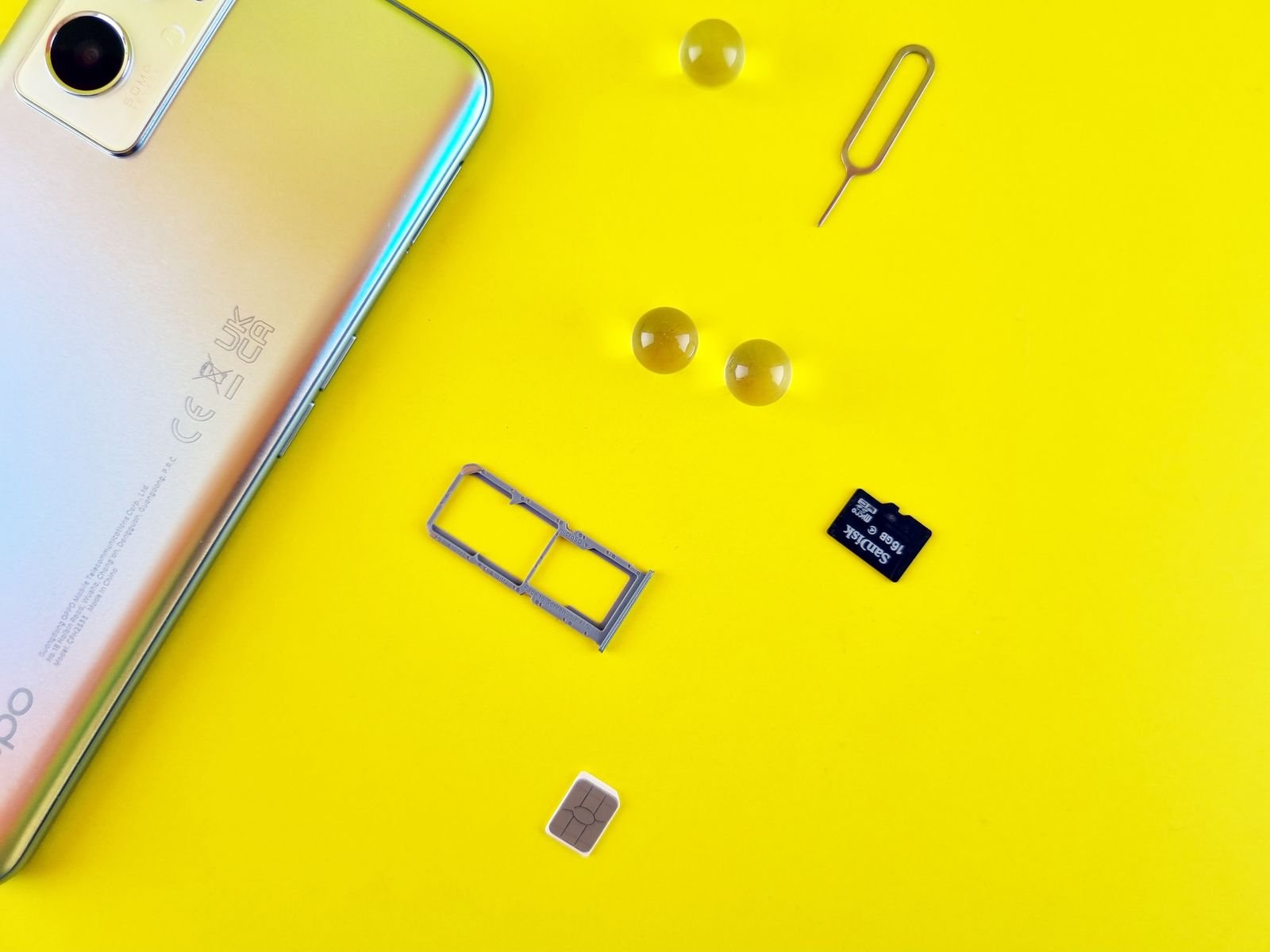
Few phone warnings feel as annoying as “Storage Almost Full.” It shows up right when you need to take a photo or install an update, and the obvious fix — deleting pictures — is the one thing most people refuse to do. The good news is that photos are rarely the only thing eating your storage. Here is how to free up storage on phone without deleting a single photo. On most phones, apps, cached files, downloads and old message attachments take up just as much space, and clearing them costs you nothing you care about.
Start by finding out what is actually full. On an iPhone, open Settings, then General, then iPhone Storage. On Android, open Settings, then Storage. Both screens show a breakdown by category — apps, photos, system, cached data — and both will surprise you. A phone that feels full of photos is often full of something else entirely, and knowing the split tells you where the easy wins are.
Back up your photos to free up storage on phone

This is the single biggest space saver, and it does not delete a single photo. The trick is to keep a full copy in the cloud and let your phone hold smaller versions.
On iPhone, turn on iCloud Photos in Settings, then Photos, and choose “Optimize iPhone Storage.” Your originals upload to iCloud, and the phone replaces them with smaller versions that look identical on screen. Tap any photo and the full version downloads again in seconds. On Android, Google Photos does the same job: back up your photos, then use the “Free up space” option, which removes device copies of photos that are already safely backed up.
Two warnings matter here. First, check that the backup actually finished before you free anything — open Google Photos or iCloud and confirm the upload is complete, not still syncing. Second, this only works if you have cloud space. Apple’s free iCloud tier is 5GB, which fills fast; Google gives 15GB shared across its services. If you are out of cloud room, a paid plan costs a few dollars a month and is still cheaper than buying a new phone for storage.
Offload apps you do not use
Apps are the second-biggest category on most phones, and the fix is painless. On iPhone, the same iPhone Storage screen offers “Offload Unused Apps.” Turning it on removes apps you have not opened in a while but keeps their data and documents, so reinstalling later restores everything exactly as you left it. You can also offload a single app manually from its entry on that screen.
Android handles this differently. Open Settings, then Apps, and sort by size. Games are the usual suspects — a single game can take 5GB or more — followed by social apps and streaming apps that store downloaded content. Uninstall the games you finished months ago. For apps you still want, check their in-app downloads: Netflix, Spotify, YouTube and podcast apps all keep offline files that pile up silently, and deleting old downloads inside the app frees space without touching the app itself.
Clear the caches and the message clutter
Cache is the space apps use to store temporary files so they load faster. It is safe to clear, and it rebuilds itself. On Android, go to Settings, then Apps, pick an app, then Storage, and tap “Clear cache.” Do this for your browser, social apps and shopping apps first — they are the worst offenders. Never tap “Clear data” by accident: that wipes the app’s login and settings, not just its cache.
iPhones do not offer a single clear-cache button, so the work is app by app. Safari’s cache clears from Settings, then Safari, then “Clear History and Website Data.” For other apps, deleting and reinstalling is the only reliable way to flush a bloated cache — and it is worth doing for one or two apps that have grown past a gigabyte.
Then check your messages. WhatsApp, Telegram and your texting app all store every photo, video and voice note anyone ever sent you. In WhatsApp, open Settings, then Storage and data, then “Manage storage” to see the largest files and the chats using the most space. Delete the ten-minute video your cousin sent in 2024. Keep the photos you care about — they are already in your camera roll or your cloud backup.
Tame downloads, files and the “Other” category
Open your Files app and look in Downloads. Old PDFs, installation files, airline boarding passes and zip files live there long after you needed them. Delete them in bulk. On Android, the Files app also has a “Clean” suggestion that flags junk files, duplicate downloads and large files you have not opened in months.
That mysterious “Other” or “System Data” category is mostly temporary system files, logs and update packages. You cannot delete it directly, but two things shrink it: restarting your phone, which clears temporary files, and installing pending software updates, which replace old system files with new ones. If “Other” has grown past 20GB on an iPhone, the reliable fix is a backup followed by a restore — a bigger job, but it works.
When freeing space is not enough
If you have done all of this and the phone is still nearly full, the honest answer is that your storage tier is too small for how you use the phone. Before buying a new phone, check two things: whether your next phone should have double the storage, and whether a cloud plan is cheaper than a hardware upgrade. For most people, a small cloud subscription plus these habits keeps a 128GB phone comfortable for years.
If you do decide to move on to a new phone, read How to Transfer Data to a New Phone first, then follow How to Factory Reset Your Phone Before Selling and the Phone Selling Checklist before you hand your old phone over.
The habit that matters most is the simplest one: check your storage once a month, the same way you check your battery health. Five minutes of cleanup beats the afternoon you lose when the storage warning appears in the middle of something important.
FAQ
How do I free up storage on my iPhone without deleting photos?
Turn on iCloud Photos with “Optimize iPhone Storage” so full originals live in iCloud and your phone keeps smaller versions. Then offload unused apps and clear Safari’s cache.
How do I free up storage on Android without deleting photos?
Back up photos with Google Photos, then use its “Free up space” option to remove device copies that are already backed up. Then clear app caches and delete old downloads in the Files app.
Is it safe to clear cache on my phone?
Yes. Clearing cache removes temporary files that apps rebuild automatically. Do not tap “Clear data” or “Clear storage” by mistake — that wipes logins and settings.
Why is my phone storage full when I have few photos?
Apps, games, cached files, offline downloads and message attachments usually take more space than photos. Check Settings, then Storage to see the real breakdown before deleting anything.
How much free space should I keep on my phone?
Aim for at least 10 percent free, or about 10GB on a 128GB phone. Updates need breathing room, and a nearly full phone runs slower and cannot take photos or videos.
Sources: https://support.apple.com/en-us/108047 | https://support.google.com/photos/answer/6156103