





Switching to a new phone used to mean moving a tiny plastic SIM card from one tray to another. With an eSIM, there is no card to move — your number lives as a digital profile inside the phone. Learning how to transfer eSIM to a new phone before you switch saves you from the most common upgrade mistake: wiping the old phone before the new one has service.
The good news is that the process has become much smoother in 2026. Apple and Google both build transfer tools into their phones, and T-Mobile, Verizon and AT&T all let you move an eSIM through their apps. The method depends on which phones you are switching between, so pick the section that matches your move.
What an eSIM Transfer Actually Does
An eSIM can only be active on one phone at a time. A transfer deactivates the profile on your old phone and activates it on your new one, keeping the same number, plan and account. It usually takes two to five minutes, and your number never changes.
There are three ways it can happen: a direct device-to-device transfer between two phones of the same platform, a carrier app or QR code that provisions a fresh eSIM on the new phone, or a call to your carrier. Direct transfer is the fastest when it is available. The carrier route works for every combination, including switching between iPhone and Android.
Transferring an eSIM Between iPhones
Apple introduced eSIM Quick Transfer in iOS 16, and it has improved with each release. If both iPhones run iOS 16 or later and your carrier supports it — AT&T, T-Mobile and Verizon in the US all do — the transfer takes about five minutes over Bluetooth.
During setup, turn on your new iPhone and hold it near your old one. Follow the Quick Start prompts, and when the setup asks about your cellular plan, choose Transfer. Your old iPhone shows a notification asking you to confirm, and after you approve, the eSIM deactivates on the old phone and activates on the new one. You may need to restart the new phone once.
If your new iPhone is already set up, you can start the same transfer later. On the new phone, go to Settings, then Cellular, then Add eSIM, and choose Transfer from Nearby iPhone. Both phones need to be nearby with Bluetooth on, signed in to the same Apple Account, and the old iPhone must be unlocked with its passcode. Apple’s newer guidance puts the smoothest experience on iPhone 13 or later running iOS 17.4 or newer.
If Quick Transfer does not appear, your carrier can still move the line. Open the carrier app on your new phone, or contact the carrier, and ask for a new eSIM for the new device.
Transferring an eSIM Between Android Phones
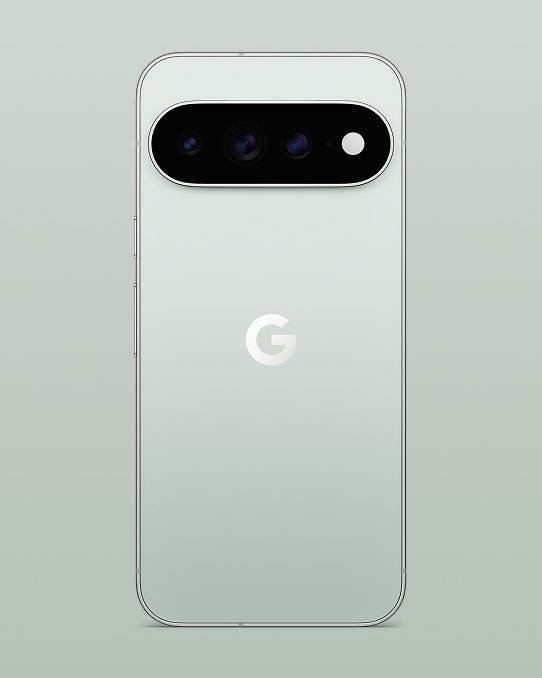
Android’s transfer tools depend on the phone and the carrier. Google Pixel 7 and newer, and Samsung Galaxy S23 and newer, running Android 14 or later support a native transfer: on the new phone, go to Settings, then Network and Internet, then SIMs, then Add eSIM, and choose Transfer from another device if the option appears. Samsung phones also offer Smart Switch, which can move an eSIM profile between Samsung devices.
Carrier support varies more on Android than on iPhone. T-Mobile US and Google Fi support the native Android transfer, and more carriers are adding it. If the transfer option does not show up, use the carrier route below — it works on every Android phone with eSIM support, including older models.
Switching Between iPhone and Android
Cross-platform moves need the carrier, because direct transfer only works between two iPhones or two compatible Android phones. There is one exception: Apple’s support pages describe a direct Android-to-iPhone transfer for an iPhone 11 or later running iOS 26 or later, paired with a compatible Android phone on Android 16 or later, on AT&T, Cricket, FirstNet, T-Mobile, Verizon or Xfinity Mobile. On the new iPhone, choose Transfer from Android in eSIM setup, scan the QR code the iPhone shows with the Android phone, and follow the prompts on both devices.
For every other cross-platform move, the process is: deactivate the eSIM on the old phone, then ask your carrier for a new eSIM for the new phone. The carrier issues a QR code or pushes the profile through its app, you scan it on the new phone, and the old profile deactivates. Most major US carriers do this free of charge.
Using Your Carrier App to Transfer an eSIM
The carrier app is the most reliable method when the built-in transfer is unavailable, and it works regardless of which phones you own. The steps are similar across carriers: open the app on your new phone, sign in, select your line, and choose the option to change device or transfer the eSIM.
T-Mobile handles transfers through the T-Life app: open the app, go to Account, select your line, and follow the prompts to change the device. T-Mobile provides a QR code or pushes the eSIM profile to your new phone automatically, and it also supports Apple’s Quick Transfer between iPhones.
Verizon handles transfers through the My Verizon app: select your line, choose Change Device, enter your new phone’s IMEI and EID, and Verizon pushes the eSIM profile. Verizon also supports Quick Transfer between iPhones, and its app method is the most reliable route for Android transfers.
AT&T provisions eSIMs through the myAT&T app: select your line, choose Transfer eSIM or Activate New Device, and follow the prompts. AT&T supports Quick Transfer on iPhone, and for Android it can generate a new QR code through the app. AT&T may ask you to verify your identity during the transfer.
If the app route fails, all three carriers can do the same thing by phone or in a store. Have your new phone’s IMEI and EID ready — both are in Settings, under About or General, on iPhone and Android.
Before You Transfer: The 5-Step Checklist
1. Keep the old phone. Do not sell it, trade it in or erase it until the new phone can make a call. A factory reset can lock the eSIM profile and make the transfer harder, so move the eSIM first and wipe the old phone second. Our guide to factory resetting your phone before selling covers the full handover order.
2. Charge both phones past half. A dead phone mid-transfer leaves the line in limbo.
3. Connect both phones to Wi-Fi and switch Bluetooth on. Direct transfers need both.
4. Check your new phone is unlocked. A carrier-locked phone cannot always accept a transferred eSIM from another carrier. If your new phone is locked, see our guide to selling a carrier-locked iPhone for how locks work before you start.
5. Test the new phone before you erase the old one. Make a call, send a text and load a web page on mobile data. Only then is the transfer truly done.
If anything goes wrong, the fallback is simple: contact your carrier and ask for a replacement eSIM. They can deactivate the old profile and issue a new one, usually within minutes, and the service works just as well as a direct transfer.
A freshly switched iPhone 18 Pro Max, Samsung Galaxy S26 Ultra or Google Pixel 11 Pro XL with your old number already working is the whole point of the exercise — five minutes of setup, and the new phone feels like yours from the first call.
Frequently Asked Questions
How long does it take to transfer an eSIM to a new phone?
Most transfers take two to five minutes. Direct device-to-device transfers are the fastest; carrier app or QR code provisioning can take a few minutes longer while the profile downloads and activates.
Can I transfer an eSIM from iPhone to Android?
Not directly, with one exception: Apple’s iOS 26 supports a direct Android-to-iPhone transfer on AT&T, Cricket, FirstNet, T-Mobile, Verizon and Xfinity Mobile. For all other cross-platform moves, ask your carrier for a new eSIM and scan its QR code on the new phone.
Does transferring an eSIM cost anything?
Most major US carriers — T-Mobile, AT&T and Verizon — move an eSIM free of charge. Some smaller carriers and travel eSIM providers may charge for reissuing a profile.
What happens to the eSIM on my old phone after a transfer?
It deactivates automatically. An eSIM can only be active on one phone at a time, so your old phone loses cellular service as soon as the new phone activates.
Should I factory reset my old phone before transferring the eSIM?
No. Transfer the eSIM first, confirm the new phone can make calls, and only then erase the old phone. A factory reset before the transfer can lock the eSIM profile.
Sources: https://www.cellphoneplans.co/blog/how-to-transfer-esim-new-phone.html, https://esimrated.com/en/how-to/transfer-esim, https://www.neoteo.com/en/how-to-transfer-an-esim-to-a-new-phone-without-losing-service